
AndroidからGoogle App Engineとの接続方法を紹介します。
準備
- Google アカウントの取得、Google App Engineアプリケーション登録
Google App Engineを利用するにあたって下記URLからGoogleのアカウントを取得します。
https://www.google.com/accounts/Google App Engineにアプリケーションを作成するため、http://appengine.google.com/startにアクセスしてください。
リンクをクリック後Googleのログイン画面が表示された場合は作成したアカウントでログインしてください。
開かれたページの「Create an Application」ボタンをクリックします。
携帯メールアドレスなど必要な項目を入力していきます。
以下のような画面が表示されたら「Application Identifier」と「Application Title」を入力します。
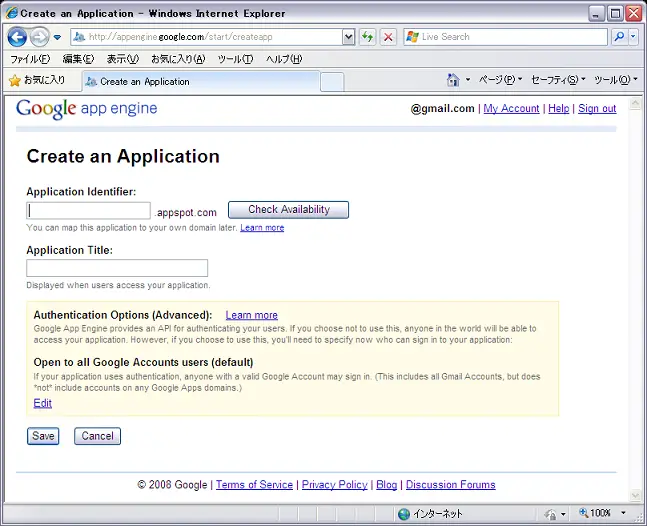
入力した「Application Identifier」は作成したアプリケーションをデプロイ後、http://入力値.appspot.com/として使われます。
※注意:「Application Identifier」は一度作成すると、変更、削除は出来ません。
「Application Title」は変更できまます。
「save」ボタンをクリックします。
http://appengine.google.com/が管理コンソールになります。
- Eclipseプラグインのインストール
Google App Engine では、Java 5 と Java 6 がサポートされていますが後述するSlim3を導入するとJava 6以上が必要となりますので、JDK6をインストールしてください。Eclipseプラグインをインストールします。
プラグイン更新サイト
Eclipse3.3を利用している場合:http://dl.google.com/eclipse/plugin/3.3
Eclipse3.4を利用している場合:http://dl.google.com/eclipse/plugin/3.4プラグインのインストールが終了したらEclipseを再起動します。
再起動後下図のようなアイコンがツールバーに新しく追加されています。

Google App Engineの作成
基本的なGoogle App Engineアプリケーションの作成方法を説明します。
プロジェクト作成(Slim3のプロジェクトを作成する場合不要です)
 ボタンをクリックし、プロジェクトを作成します。

「Project name」と「Package」を入力します。
Google Web Toolkitを使用する場合は「Use Google Web Toolkit」のチェックを入れます。
終了をクリックします。
ローカル環境での実行
パッケージエクスプローラーで作成したプロジェクトを右クリック⇒実行⇒Web Applicationでローカル環境での確認が行えます。
http://localhost:8080/にアクセスして確認してください。
デプロイ
作成したプロジェクトのプロパティを開き、Google⇒App Engineを選択します。
表示された設定画面の「My Applications」のリンクをクリックします。
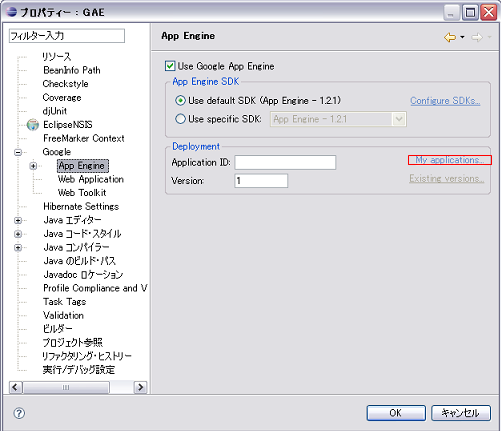
リンクからページに移動しない場合はhttp://appengine.google.com/startにアクセスしてください。
リンクをクリック後Googleのログイン画面が表示された場合は作成したアカウントでログインしてください。
すると、準備にて登録したApplicationが表示されます。
「Application ID」に「Application」に表示された名前を入力します。
「OK」ボタンをクリックして設定画面を閉じます。
 ボタンをクリックし、プロジェクトを選択します。
「Email」と「Password」はGoogleのアカウントを取得したものを使用します。
「Deploy」ボタンをクリック後コンソール画面に「Deployment completed successfully」と表示されればデプロイ成功です。
http://[Application ID].appspot.com/にアクセスして確認してください。
以後のデプロイはボタンをクリックし、プロジェクト選択、パスワードの入力「Deploy」ボタンをクリックするだけです。
Google App Engineにデプロイしたアプリケーションのコンソール画面は、プロジェクトのプロパティGoogle⇒App Engine「My Applications」のリンクをクリックします。
表示された画面に登録した「Application ID」が新しく表示されていますのでそのリンクをクリックするとコンソール画面に移動できます。
Slim3プロジェクトの作成
Slim3でのGoogle App Engineアプリケーションの作成方法を説明します。
プロジェクトの作成
SVNリポジトリーURL:http://slim3.googlecode.com/svn/trunkからslim3-blankプロジェクトをチェックアウトします。
※以下説明は2009年7月28日現在の最新リビジョン337をのものになります。
今回は「slim3-android」プロジェクトとしてチェックアウトします。
デフォルト状態でGoogle App Engineのプロジェクトとして認識されますので、プロジェクトのプロパティを開き、Google⇒App Engine
の設定で「Application ID」に上記で設定したものと同じものを入力します。
プロジェクトのプロパティ-Javaコンパイラー-注釈処理-ファクトリー・パスで、指定されているJarを現在の環境に合わせ修正します。
※Eclipse3.4のみ?
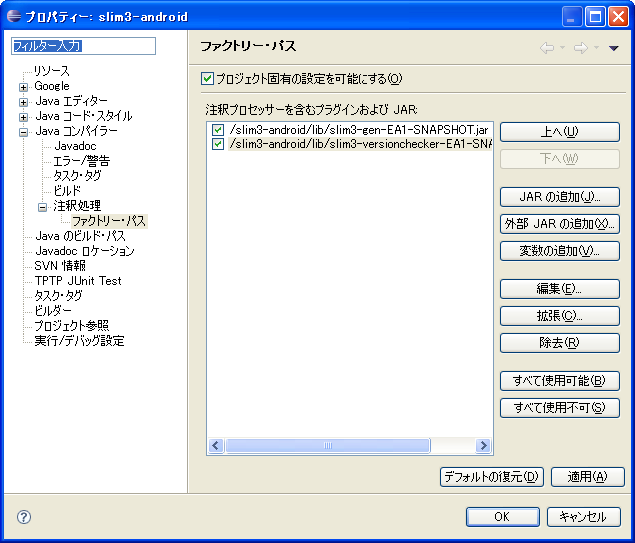
※slim3がアップデートされた為slim3-versioncheckerのチェックは不要です。
ローカル環境での実行
作成したプロジェクトを右クリック⇒実行⇒Web Applicationでローカル環境での確認が行えます。
http://localhost:8080/にアクセスして確認してください。「Welcome to Slim3」と表示されることを確認してください。
デプロイ
通常のデプロイと同じです。
ボタンをクリック後「slim3-android」プロジェクトを選択します。
デプロイすると先ほどデプロイしたアプリケーションが「slim3-android」に上書きされますので、確認してください。
デブロイが終了したら、ページにアクセスし「Welcome to Slim3」と表示されることを確認してください。
プログラムの作成
Slim3では、antで基本的なソースを作成します。
作成するにはbuild.xmlの各ターゲットを実行します。
- gen-controller
「Input a controller path.」とダイアログが表示されたらコントローラークラス名に使われる名前を入力します。
Sampleと入力すると、slim3.controller.SampleControllerクラスとslim3.controller.SampleControllerTestクラスおよびテストクラス、
Sample.jspが作成されます。 - gen-controller-without-view
「Input a controller path.」とダイアログが表示されたらコントローラークラス名に使われる名前を入力します。
Sampleと入力すると、slim3.controller.SampleControllerクラスとslim3.controller.SampleControllerTestクラスおよびテストクラスが作成されます。 - gen-model
「Input a model simple name.」とダイアログが表示されたらモデルクラス名に使われる名前を入力します。
Sampleと入力すると、slim3.model.Sampleクラスとテストクラスが作成されます。 - gen-service
「Input a service name.」とダイアログが表示されたらサービスクラス名に使われる名前を入力します。
SampleServiceと入力すると、slim3.service.SampleServiceクラスとテストクラスが作成されます。
デフォルトのパッケージは、slim3になっています。
変更したい場合は、web.xmlのslim3.rootPackageに設定します。
以上のようにモデルクラス、コントローラクラスを作成しアプリケーションを構築します。
AndroidからSlim3に接続する
サーバプログラムの作成
- モデルクラスの作成
antで「gen-model」を実行します。Sampleクラスが作成されます。
Sampleクラスにvalueプロパティを追加します。Sample.javaimport java.io.Serializable; import com.google.appengine.api.datastore.Key;
import org.slim3.datastore.Attribute;
import org.slim3.datastore.Model;
@Model(schemaVersion = 1)
public class Sample implements Serializable {
private static final long serialVersionUID = 1L;
   @Attribute(primaryKey = true)
   private Key key;
   @Attribute(version = true)
   private Long version;
private String value;
   /**
    * Returns the key.
    *
    * @return the key
    */
   public Key getKey() {
       return key;
   }
   /**
    * Sets the key.
    *
    * @param key
    *            the key
    */
   public void setKey(Key key) {
       this.key = key;
   }
   /**
    * Returns the version.
    *
    * @return the version
    */
   public Long getVersion() {
       return version;
   }
   /**
    * Sets the version.
    *
    * @param version
    *            the version
    */
   public void setVersion(Long version) {
       this.version = version;
   }
   @Override
   public int hashCode() {
       final int prime = 31;
       int result = 1;
       result = prime * result + ((key == null) ? 0 : key.hashCode());
       return result;
   }
   @Override
   public boolean equals(Object obj) {
       if (this == obj) {
           return true;
       }
       if (obj == null) {
           return false;
       }
       if (getClass() != obj.getClass()) {
           return false;
       }
       Sample other = (Sample) obj;
       if (key == null) {
           if (other.key != null) {
               return false;
           }
       } else if (!key.equals(other.key)) {
           return false;
       }
       return true;
   }
   public void setValue(String value) {
       this.value = value;
   }
   public String getValue() {
       return value;
   }
}
- クライアントモデルクラスの作成
クライアント(Android)側で使用するDTOを作成します。SampleClientDto.javapublic class SampleClientDto implements Serializable {
private static final long serialVersionUID = 1L;
   @SuppressWarnings("unused")
   private static final Logger logger = Logger.getLogger(SampleClientDto.class.getName());
private String key;
private String value;
   /**
    * @return the key
    */
   public String getKey() {
       return key;
   }
   /**
    * @param key
    *            the key to set
    */
   public void setKey(String key) {
       this.key = key;
   }
   public String getValue() {
       return value;
   }
   public void setValue(String value) {
       this.value = value;
   }
}
- サービスの作成
SampleモデルをDatastoreに保存するためにサービスを作成します。
antで「gen-service」を実行します。
作成したサービスに、必要な処理を追加します。SampleService.javapublic class SampleService { public void insert(Sample sample) throws Exception { sample.setKey(Datastore.allocateId(SampleMeta.get()));
       Transaction tx = Datastore.beginTransaction();
       try {
           Datastore.put(tx, sample);
           tx.commit();
       }
       catch (Exception e) {
           if (tx.isActive()) {
               tx.rollback();
           }
           throw e;
       }
   }
}
- コントローラーの作成
コントローラークラスを作成します。
viewを作成しないので、without-viewで作成します。
antで「gen-controller-without-view」を実行します。
作成したコントローラーに、必要な処理を追加します。SampleController.javapublic class SampleController extends Controller {
   @SuppressWarnings("unused")
   private static final Logger logger = Logger.getLogger(SampleController.class.getName());
   @Override
   public Navigation run() {
      SampleService service = new SampleService();
      String modelStr = (String) request.getParameter("MODEL");
       try {
           // デシリアライズ
           ByteArrayInputStream byteIn =
               new ByteArrayInputStream(toByteArray(modelStr));
           ObjectInputStream in = new ObjectInputStream(byteIn);
           SampleClientDto clientDto = (SampleClientDto) in.readObject();
           // クライアントDtoのvalueを取得
           Sample sample = new Sample();
           sample.setValue(clientDto.getValue());
           // 保存
           service.insert(sample);
       } catch (Exception e) {
           response.setStatus(HttpServletResponse.SC_INTERNAL_SERVER_ERROR);
       }
       return null;
   }
   /**
    * 16進数の文字列⇒バイト配列変換
    *
    * @param hex
    *            16進数の文字列
    * @return バイト配列
    */
   public static byte[] toByteArray(String hex) {
       byte[] bytes = new byte[hex.length() / 2];
       for (int index = 0; index < bytes.length; index++) {
           bytes[index] =
               (byte) Integer.parseInt(hex.substring(
                   index * 2,
                   (index + 1) * 2), 16);
       }
       return bytes;
   }
}
クライアント(Android)プログラムの作成
- 画面の作成
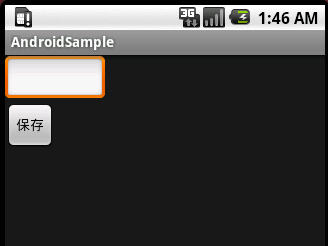
このような簡単な画面を作成します。SampleActivity.javapublic class SampleActivity extends Activity { // 接続先 private final static String URL = "http://XXX.XXX.XXX.XXX:8080/sample";#private final int WRAP_CONTENT = ViewGroup.LayoutParams.WRAP_CONTENT;
#private EditText editText;
#/** Called when the activity is first created. */ @Override public void onCreate(Bundle savedInstanceState) {#super.onCreate(savedInstanceState); LinearLayout linearLayout = new LinearLayout(this); linearLayout.setOrientation(LinearLayout.VERTICAL); setContentView(linearLayout);#editText = new EditText(this); editText.setWidth(100);#linearLayout.addView(editText, new LinearLayout.LayoutParams(WRAP_CONTENT, WRAP_CONTENT));
#Button button = new Button(this); button.setText("保存"); button.setOnClickListener(new View.OnClickListener() {#@Override public void onClick(View v) {#// 入力データ⇒Dto SpannableStringBuilder sb = (SpannableStringBuilder) editText .getText(); String str = sb.toString();#SampleClientDto clientDto = new SampleClientDto(); clientDto.setValue(str);#// シリアライズ&バイト配列文字列変換 ByteArrayOutputStream byteOut = new ByteArrayOutputStream(); ObjectOutputStream os; try { os = new ObjectOutputStream(byteOut); os.writeObject(clientDto); } catch (IOException e) { showAlert("変換に失敗しました"); } String s = toHexString(byteOut.toByteArray());#// 接続 HttpURLConnection con = null;#PrintWriter out = null; try { URL url = new URL(URL); con = (HttpURLConnection) url.openConnection(); con.setRequestMethod("POST"); con.setDoOutput(true); con.setDoInput(true);#out = new PrintWriter(con.getOutputStream()); out.print("MODEL="); out.print(s); } catch (Exception e) { showAlert("サーバとの接続に失敗しました"); return; } finally { if (out != null) { out.flush(); out.close(); } }#try { if (con.getResponseCode() == HttpURLConnection.HTTP_OK) { showAlert("保存しました"); } else { showAlert("保存に失敗しました"); } } catch (Exception e) { showAlert("保存に失敗しました"); } }#}); linearLayout.addView(button, new LinearLayout.LayoutParams(WRAP_CONTENT, WRAP_CONTENT));#}
#/** * アラート表示 * * @param message * メッセージ */ public void showAlert(String message) { AlertDialog.Builder ad = new AlertDialog.Builder(this); ad.setMessage(message); ad.setPositiveButton("OK", new DialogInterface.OnClickListener() { public void onClick(DialogInterface dialog, int whichButton) { setResult(RESULT_OK); } }); ad.create(); ad.show(); }#/** * バイト配列⇒16進数の文字列変換。 * * @param bytes * バイト配列 * @return 16進数の文字列 */ public static String toHexString(byte bytes[]) { StringBuffer strbuf = new StringBuffer(bytes.length * 2); for (int index = 0; index < bytes.length; index++) { int bt = bytes[index] & 0xff; if (bt < 0x10) { strbuf.append("0"); } strbuf.append(Integer.toHexString(bt)); } return strbuf.toString(); } }
ローカル環境での接続
ローカルサーバ起動
アンドロイドアプリからアクセスされるため、IPアドレスを指定する必要があります。
プログラム引数に、以下のオプションを指定してください。
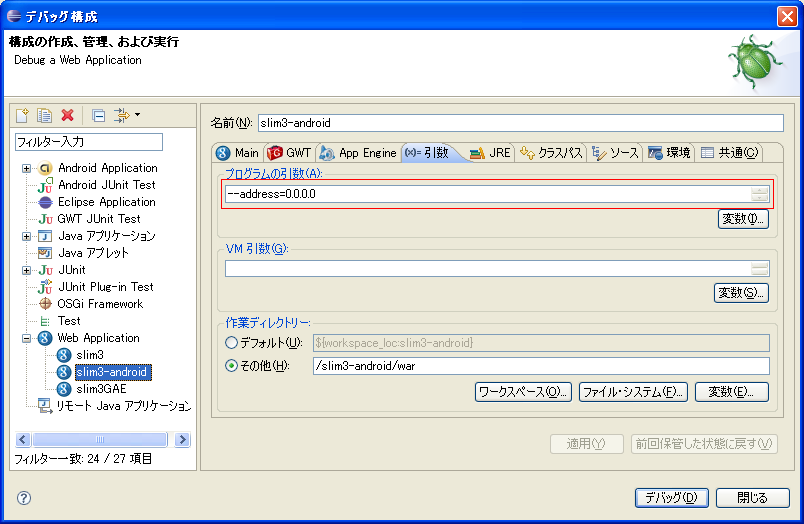
アンドロイドアプリの設定
接続先をサーバのアドレスに変更し、アプリケーションを実行してください。
   // 接続先
   private final static String URL = "http://XXX.XXX.XXX.XXX:8080/sample";
確認
文字を入力して、保存ボタンを押してください。
「保存しました」とのメッセージが表示されれば、成功です。
データが正しく保存されているか、確認してみましょう。
http://localhost:8080/_ah/adminにアクセスしてください。
管理コンソールが表示されます。
Datastore Viewerで、保存したEntityを選択し、List Entitiesボタンを押してください。
入力したデータが保存されているはずです。
グローバル環境での接続
デプロイ
ボタンをクリック後「slim3-android」プロジェクトを選択です。
アンドロイドアプリの起動
接続先をサーバのアドレスに変更し、アプリケーションを実行してください。
   // 接続先
   private final static String URL = "http://[Application ID].appspot.com/sample";
確認
ローカル環境と同じように、文字を入力して、保存ボタンを押してください。
「保存しました」とのメッセージが表示されれば、成功です。
データが正しく保存されているか、確認してみましょう。
http://appengine.google.com/にアクセスしてください。
管理コンソールが表示されます。
使用しているアプリケーションを選択してください。
Datastore - Data Viewer で保存したEntityを選択してください。
入力したデータが保存されているはずです。